

Why Does My Sticker Look Blurry?
Almost always, the file was too small for the size you printed it, not the printer, and not the material. A design that looks crisp on your phone can carry far less detail than a sticker needs, because a screen is small and forgiving and print is neither. The fix is upstream of the order: it’s in the file, before you ever hit upload.
The question isn’t “why is it blurry,” it’s “blurry how”
“Blurry” gets used for three different problems, and they get fixed three different ways. Before reordering anything, work out which one you actually have:
- Soft or fuzzy all over — the whole image lacks sharpness, like it’s slightly out of focus. Usually a low-resolution file.
- Jagged or pixelated edges — you can almost see the squares, especially on curves and text. Usually a small image stretched too large.
- Muddy in the details only — the big shapes are fine but fine lines, small text, or texture went to mush. Usually detail too fine for the print size, a screenshot, or heavy compression.
Same complaint, three causes. Naming yours is most of the fix.
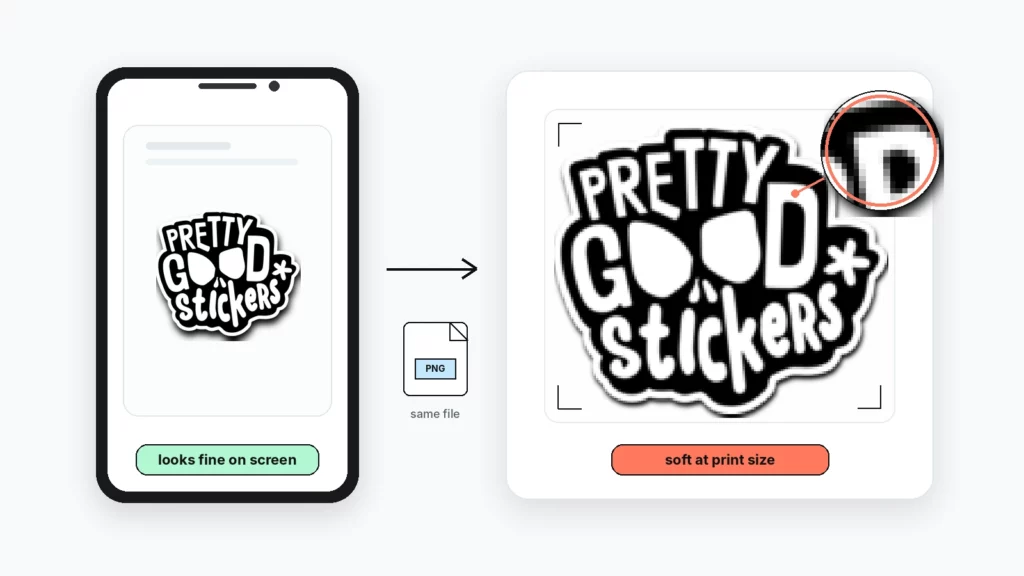
Soft all over: the file was low-resolution
This is the common one. The file didn’t hold enough detail for the size it printed at, so everything came out gentle and unsharp.
Resolution only means something when it’s tied to size. A file that’s razor-sharp at 4 cm can go soft at 12 cm — the artwork didn’t change, but it’s now being stretched across three times the space with the same amount of detail. That’s why the number that matters is 300 dpi at the final print size, not 300 dpi in the abstract.
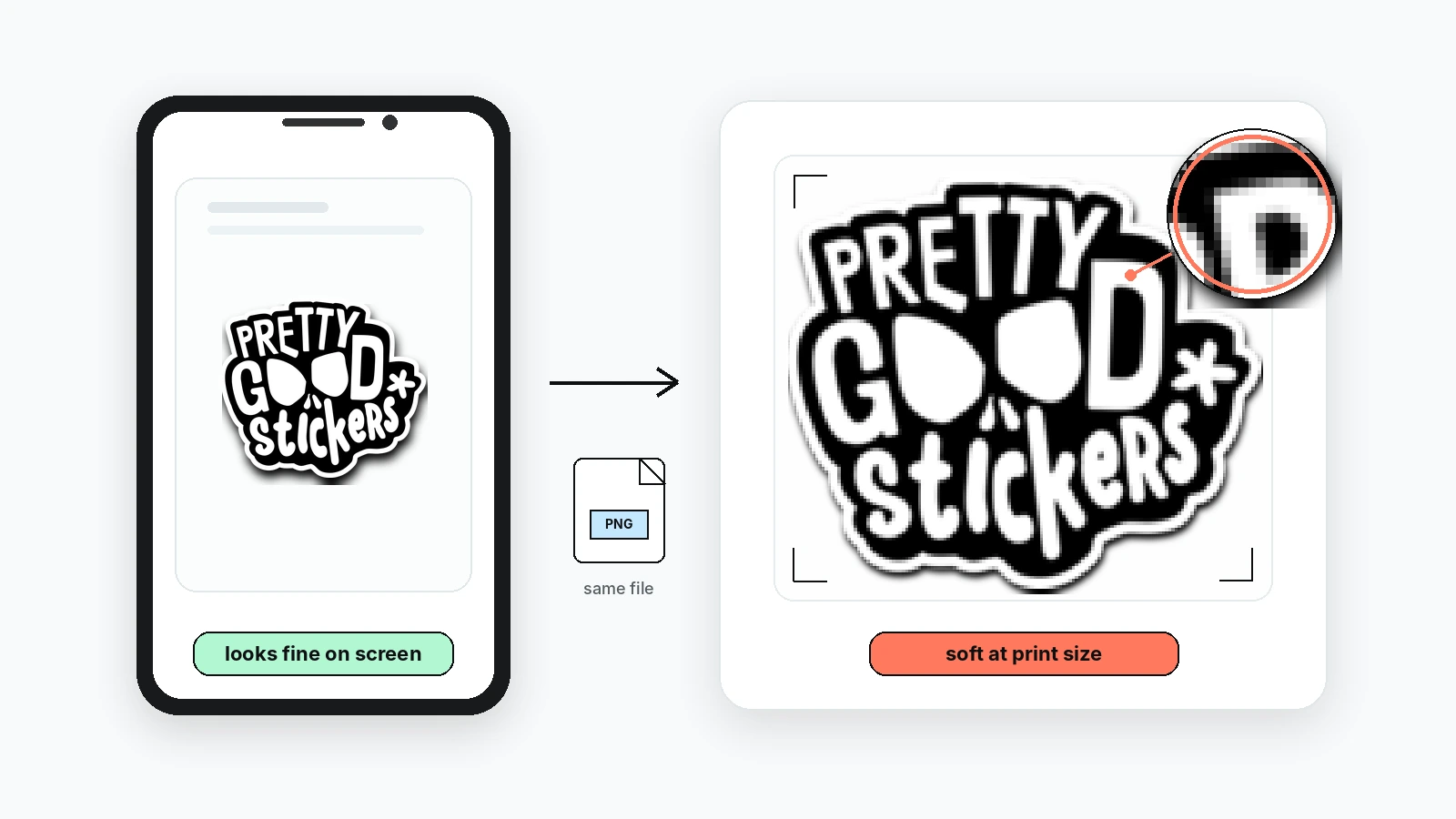
If your file was fine on screen but soft in hand, this is almost certainly what happened. Screens display at low resolution and look great doing it. Print asks for more.
Jagged edges: a small image was pushed too big
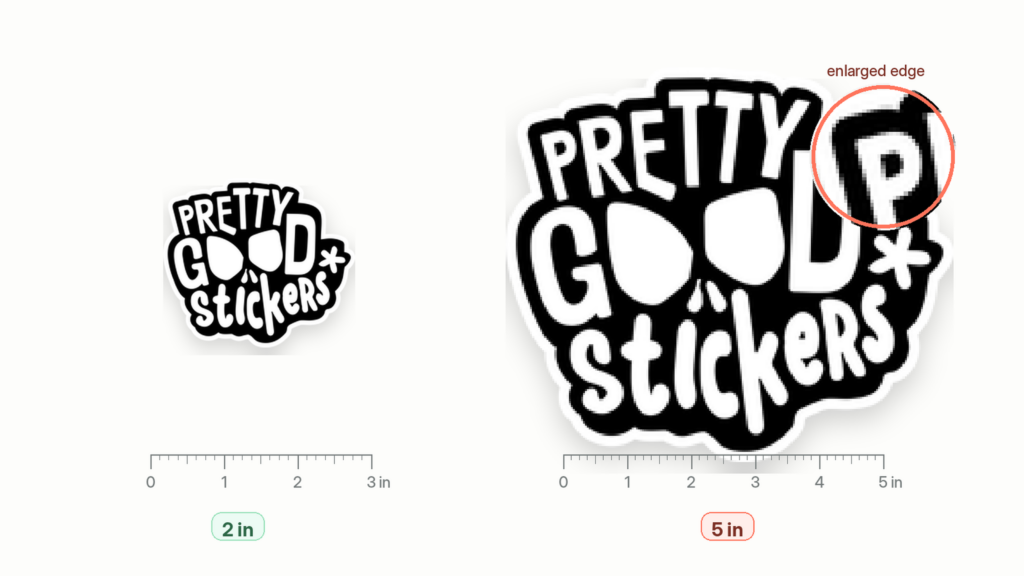
Different failure. Here the file wasn’t just low-res, it was small, and got scaled up to fit.
When you enlarge a raster image past its real size, the software invents pixels to fill the gap, and it guesses. On flat areas you won’t notice. On edges, curves, and text, those guesses show up as steps and roughness. Bumping the DPI number in a design app does the same thing. It makes the file bigger, not sharper, because the detail was never in there to begin with.
The tell: zoom into the original file at 100% before ordering. If the edges already look rough at actual size, printing won’t rescue them. It’ll enlarge exactly what you’re seeing.
Muddy details: too fine for the size, a screenshot, or over-compressed
The third kind. Big shapes print clean, but thin lines, small type, or fine texture blur together.
A few things cause this. The detail was genuinely too small for the print. Hairline strokes and tiny text need physical room, and below a certain size ink and cut can’t hold them. Or the file is a screenshot or a social-media download, both of which are compressed for fast screen loading, not print, so they arrive with fine detail already thrown away. Or it’s a heavily compressed JPG, re-saved a few times, or exported at low quality, which softens its own detail before it ever reaches print.
If a design leans on small text or delicate line work, size up the sticker or simplify the detail. Print has a floor, and it’s higher than a screen’s.
The check that catches most of it before you order
Two checks, one automatic and one manual.
The editor flags a likely problem for you: when the original file may be too small for the size you’ve selected, it shows a DPI warning. Treat that as the signal it is, not a formality to click past.
The manual check catches the rest. Open your file at 100% actual size, not fit-to-window. That’s roughly how print will read it. Look at the parts that matter: edges, text, thin lines. If they’re soft, stepped, or mushy at 100% on your screen, they’ll be soft, stepped, or mushy on the sticker. The proof shows this too, if you look closely rather than at the whole thing zoomed out.
What we recommend
Start from the largest, cleanest original you have a vector if the design is a logo or type, a high-resolution raster if it’s drawn or painted. Check it’s 300 dpi at the size you’re actually printing, not before enlarging. Don’t scale a small file up and hope; the detail can’t be added back after the fact. And view the proof at full size before approving, with attention on the edges and any small text.
If the only file you’ve got is small or soft and there’s no better version, that’s worth a message to support before ordering, not after.
When to contact support
Reach out before approving your proof if the editor shows a DPI warning you’re unsure about, the file is the only version you have and it looks soft, the design has small text or a QR code you’re not sure will hold, the proof looks less sharp than you expected, or you’re not sure whether the file is large enough for the size you picked. A quick check beats a reprint.
FAQ
Why does my sticker look blurry but fine on my screen?
Screens display at low resolution and are very forgiving; print needs far more detail. A file can look sharp on a phone and still be too low-resolution for the printed size.
Does higher DPI fix a blurry file?
Only if the detail is already there. Raising the DPI number on a small image makes a larger file, not a sharper one because the missing detail can’t be invented back in.
What resolution stops stickers printing blurry?
300 dpi at the final print size. The “at final size” part matters: a file can be 300 dpi small and drop well below that once enlarged.
Why are the edges jagged and pixelated?
That’s usually a small raster image scaled up too far. Enlarging past its real size forces the software to guess pixels, which shows as roughness on edges, curves, and text.
Why is my logo blurry on a sticker?
Logos usually blur when uploaded as small JPGs or images pulled off a website. Use a vector file where possible, AI, EPS, or a vector PDF since those stay sharp at any size.
Can you make a low-resolution file print sharp?
No. The detail that isn’t in the file can’t be added at print. The fix is a better original file, or a smaller print size that suits the detail available.
Will vector files ever print blurry?
Vectors scale without going soft, so a true vector won’t blur from resizing. If a “vector” PDF still prints soft, it likely has a low-resolution image embedded inside it.
 Staff
Staff